
If you’re encountering the frustrating issue of bluetooth connected but no sound, you’re not alone. This article explores several reasons why your Bluetooth device may connect but fail to produce audio. First, check the media audio settings on your phone to ensure they are correctly configured. If the settings are fine, try resetting your Bluetooth speaker or earbuds to restore functionality. Additionally, unpairing and pairing the devices again can provide a fresh start and potentially resolve the issue. Finally, ensure your devices have updated firmware, and test the Bluetooth connection with another device to rule out hardware problems. By following these steps, you can troubleshoot and hopefully restore sound to your Bluetooth connections.
Why Bluetooth Connects but Doesn’t Play Sound
Experiencing a situation where your Bluetooth is connected but no sound is playing can be frustrating. This issue often occurs despite a successful connection between your device and audio equipment, leading to confusion about the underlying causes. In many cases, the problem can be easily rectified by checking a few common settings and configurations. If you find yourself asking why there is bluetooth no audio, it’s essential to explore various factors that could hinder sound playback.
Common Reasons for Bluetooth No Audio
- Device Settings: Incorrect audio settings on your device can stop sound from playing.
- Volume Levels: The volume might be muted or set too low on the connected device.
- Audio Output: The wrong audio output may be selected, preventing sound from routing to your Bluetooth device.
- Bluetooth Interference: Other electronic devices can interfere with the Bluetooth signal.
- Compatibility Issues: The audio format of the content may not be supported by the Bluetooth device.
- Device Distance: Being too far from the Bluetooth source can result in poor audio connectivity.
- Battery Levels: Low battery on either the Bluetooth device or source may affect sound output.
By examining these factors, you can gain insight into why you’re facing the issue of audio not playing via Bluetooth. Remember to check both your device and the Bluetooth accessory to identify the root cause of the problem. Taking these steps will help ensure that you can enjoy your audio without further interruptions.
Check Media Audio Settings on Your Phone
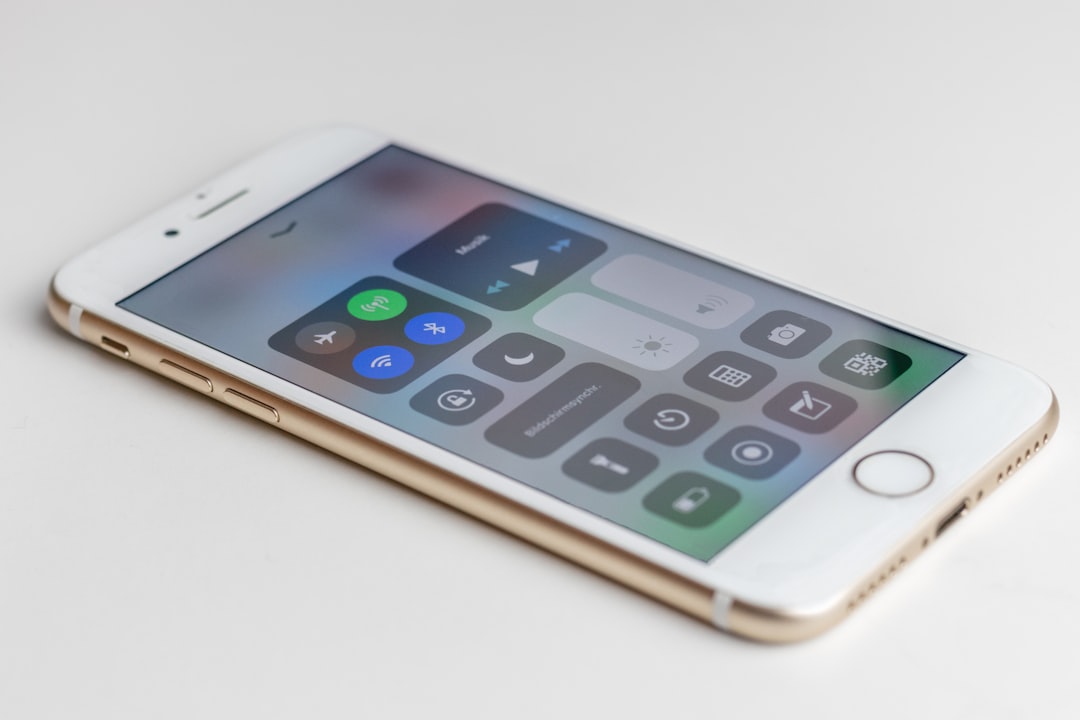
Before delving into hardware solutions, it’s crucial to check the media audio settings on your phone, as many users overlook this essential step. Sometimes, even when your Bluetooth speaker is connected, volume levels or audio output settings can prevent sound from playing. Ensuring these settings are appropriately configured can help identify whether the issue lies within the device or the speaker itself.
To better understand your audio settings, consider checking the volume levels for different audio outputs. If your Bluetooth device is connected but no sound is output, it may be because the phone is not directing audio to the desired output source. Always verify that your Bluetooth speaker is selected as the audio output device.
| Device Type | Volume Level | Audio Output |
|---|---|---|
| Smartphone | 100% | Bluetooth Device |
| Tablet | 75% | Bluetooth Device |
| Laptop | 50% | Bluetooth Device |
Next, it’s important to ensure that no Do Not Disturb modes or other settings are preventing audio playback. In some cases, your device’s settings may restrict audio from being played through connected Bluetooth speakers. Always check if any restrictions are in place that might affect audio output.
Steps to Fix Bluetooth Connected But No Sound
- Check Bluetooth Connection: Ensure your Bluetooth speaker is actively connected to your phone.
- Adjust Volume Settings: Set the volume to an audible level on both the phone and the speaker.
- Inspect Media Settings: Confirm that your phone’s media audio is directed to the Bluetooth device.
- Disable Do Not Disturb: Turn off any “Do Not Disturb” settings that could silence notifications and audio.
- Restart the Device: Sometimes, rebooting your phone or speaker can resolve connectivity issues.
- Check for Interference: Ensure no other connected devices are interfering with the Bluetooth connection.
- Test with Another Device: Connect the Bluetooth speaker to another device to determine if the issue is with the speaker or your phone.
Checking Device Settings
Now that you’ve adjusted the media audio settings, it helps to further verify specific device settings. Go through the Bluetooth settings on your phone and make sure your speaker is showing as connected. Sometimes, a simple disconnection and reconnection can resolve issues. After checking these fundamentals, you can ensure that your device is correctly configured.
Inspecting Bluetooth Connections
Finally, inspect the Bluetooth connections on all devices involved. This means checking not just your phone’s Bluetooth settings, but also ensuring that your Bluetooth speaker firmware is up to date. Outdated firmware can lead to connectivity problems, including the phenomenon of having a bluetooth speaker connected with no sound. By confirming both devices are up to date, you can eliminate compatibility issues as a potential cause.
Reset the Bluetooth Speaker or Earbuds
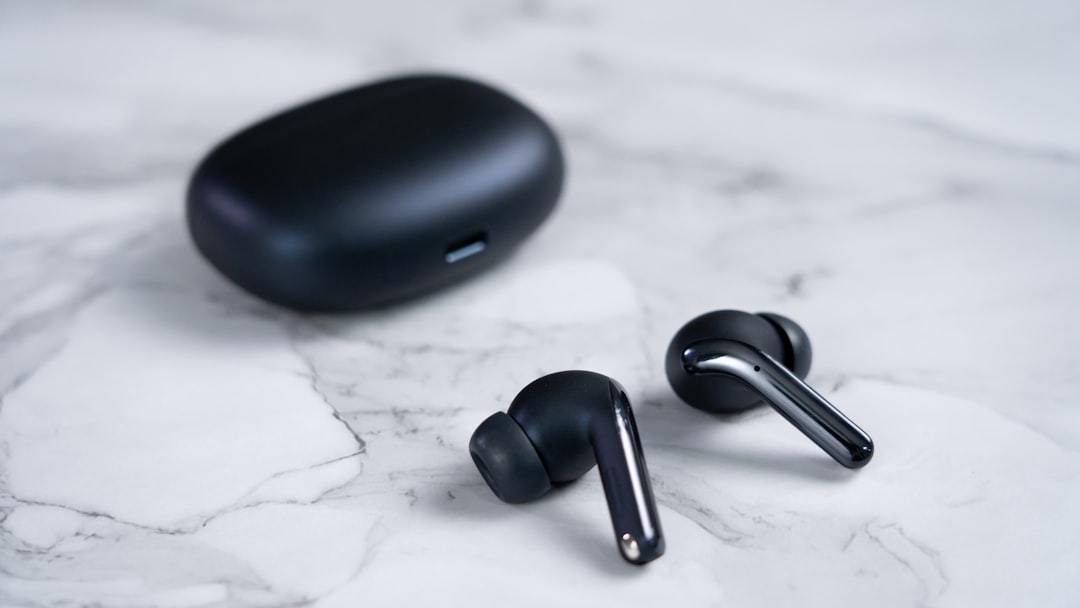
When you’re experiencing a wireless audio problem and your Bluetooth devices are connected but producing no sound, it’s essential to reset the speaker or earbuds. Resetting can help resolve any lingering software issues that might be interfering with the audio output. Start by turning off the audio device, then locate the reset button, which is typically found on the back or bottom of the device. If there’s no designated button, you can often reset the device by holding down the power button for an extended period.
Quick Tips for Fixing Audio Not Playing Via Bluetooth
- Ensure Bluetooth is enabled on your device.
- Check the battery levels of your Bluetooth speaker or earbuds.
- Toggle the Bluetooth setting off and on to refresh the connection.
- Make sure your device is in range and not obstructed by walls or other objects.
- Disconnect any other paired devices that may interfere with the connection.
- Verify that the volume is turned up on both your device and the audio accessory.
- Consult the device manual for specific reset instructions, as methods can vary.
After performing the reset, reconnect your Bluetooth device and check if the sound resumes. If the audio is still not playing via Bluetooth, you may need to investigate other settings on your device. Sometimes, restoring the Bluetooth device to its factory settings can rectify persistent issues related to connectivity and sound output. Connecting a Bluetooth device is often just the beginning; ensuring it plays audio smoothly might require a few more adjustments.
In some instances, the fix might be as simple as adjusting the audio output settings on your source device, especially if you’re dealing with a bluetooth connected but no sound situation. Check for any audio mixing options that may prioritize different output channels, which can inadvertently silence your Bluetooth audio. By ensuring all potential barriers to sound are addressed, you can enhance your listening experience and enjoy seamless audio playback.
Try Unpairing and Pairing Again (Clean Slate)
If you’re encountering the frustrating issue of bluetooth connected but no sound, a simple yet effective solution can be to unpair and then pair your Bluetooth device again. This process can help to refresh the connection and potentially resolve any software glitches that may have occurred. Sometimes, the connection between the device and the speakers can become corrupted, leading to sound issues. By starting with a clean slate, you might be able to restore the functionality of your Bluetooth device.
Actionable Steps to Fix Bluetooth Issues
- Go to your device’s Bluetooth settings and find the connected Bluetooth device.
- Select the option to unpair or forget the device.
- Turn off Bluetooth on your phone or device for about 10 seconds.
- Restart your Bluetooth speaker or earbuds.
- Turn Bluetooth back on and put your audio device into pairing mode.
- Reconnect to the device from your phone or device.
- Test the sound by playing audio on your phone.
After following the steps above, you should have a fresh connection to your Bluetooth device. If the sound issue persists, consider checking other troubleshooting options, like media audio settings or firmware updates. Additionally, sometimes simple oversights like ensuring the volume is not muted can also play a significant role in resolving sound issues. Remember, ensuring your devices are within range and fully charged can prevent disconnection problems and improve performance.
Update Firmware and Test with Another Device
In many cases, issues with Bluetooth connectivity that result in the device being connected but producing no sound can stem from outdated firmware. Manufacturers often release updates to improve performance and resolve bugs that could lead to such problems. Therefore, checking for and installing the latest firmware updates for your Bluetooth speaker or headphones is an essential step. This ensures that the device is equipped with the necessary enhancements to function correctly and seamlessly with your smartphone or computer.
Additionally, after updating the firmware, it’s wise to test the Bluetooth device with an alternative system. This is crucial to determine whether the issue lies within the original device or the Bluetooth device itself. By connecting your Bluetooth speaker or headphones to a different smartphone or tablet, you can ascertain if the problem persists across multiple devices or if the sound issue is specific to one particular source.
If the audio works flawlessly on the other device, this might suggest that your original device has compatibility issues or settings that need to be adjusted. On the other hand, if the Bluetooth device continues to exhibit signs of being connected but no sound is produced, it may indicate a more significant hardware or software problem requiring further investigation or professional assistance.
Frequently Asked Questions
Why does my Bluetooth device connect but I hear no sound?
This can happen due to various reasons such as incorrect media audio settings, connectivity issues, or the Bluetooth device needing a reset.
How can I check the media audio settings on my phone?
Go to your phone's settings, find the sound or audio section, and ensure that the media volume is turned up and that the correct Bluetooth device is selected as the audio output.
What should I do if resetting my Bluetooth speaker or earbuds doesn't work?
If a reset doesn't resolve the issue, consider trying to unpair and re-pair the devices, ensuring that they are in synchronization.
Can unpairing and pairing Bluetooth devices again help with sound issues?
Yes, unpairing and then re-pairing the devices can often help resolve minor glitches and refresh the connection.
How do I update the firmware on my Bluetooth device?
Check the manufacturer's website or the corresponding app for your device, as they typically provide instructions and software updates for firmware.
Is testing my Bluetooth device with another device a good idea?
Yes, testing your Bluetooth device with another phone or computer can help determine if the problem lies with the original device or the Bluetooth hardware itself.
What factors can lead to Bluetooth connected but no sound issues?
Potential factors include incompatible audio formats, low battery levels, or issues with Bluetooth codecs that affect sound transmission.
What if I still face issues after trying all troubleshooting steps?
If the problem persists, consider contacting customer support for your Bluetooth device, as there may be a hardware issue that requires professional assistance.
Are there any common mistakes people make when setting up Bluetooth devices?
Yes, common mistakes include not selecting the Bluetooth device as the default audio output, neglecting to adjust volume levels, or assuming a device is connected when it is not.
How can I ensure a strong Bluetooth connection?
To ensure a strong connection, keep the devices close together, avoid physical obstructions, and reduce interference from other electronic devices.