
The article How to Fix ‘Moisture Detected in Charging Port’ on Android Devices provides valuable insights into addressing the common issue of moisture detected charging port warnings. It begins by exploring what triggers this warning, typically caused by environmental factors or liquid exposure. The blog then offers practical advice on safely drying your USB charging port to restore functionality without causing damage. Additionally, it discusses bypass methods for charging your device while managing the moisture issue safely. Lastly, the article investigates whether sound frequencies can aid in removing moisture from the charging port, presenting innovative solutions for Android users. Overall, this comprehensive guide equips readers with effective strategies to tackle the moisture detected charging port dilemma.
What Triggers the Moisture Detected Warning?
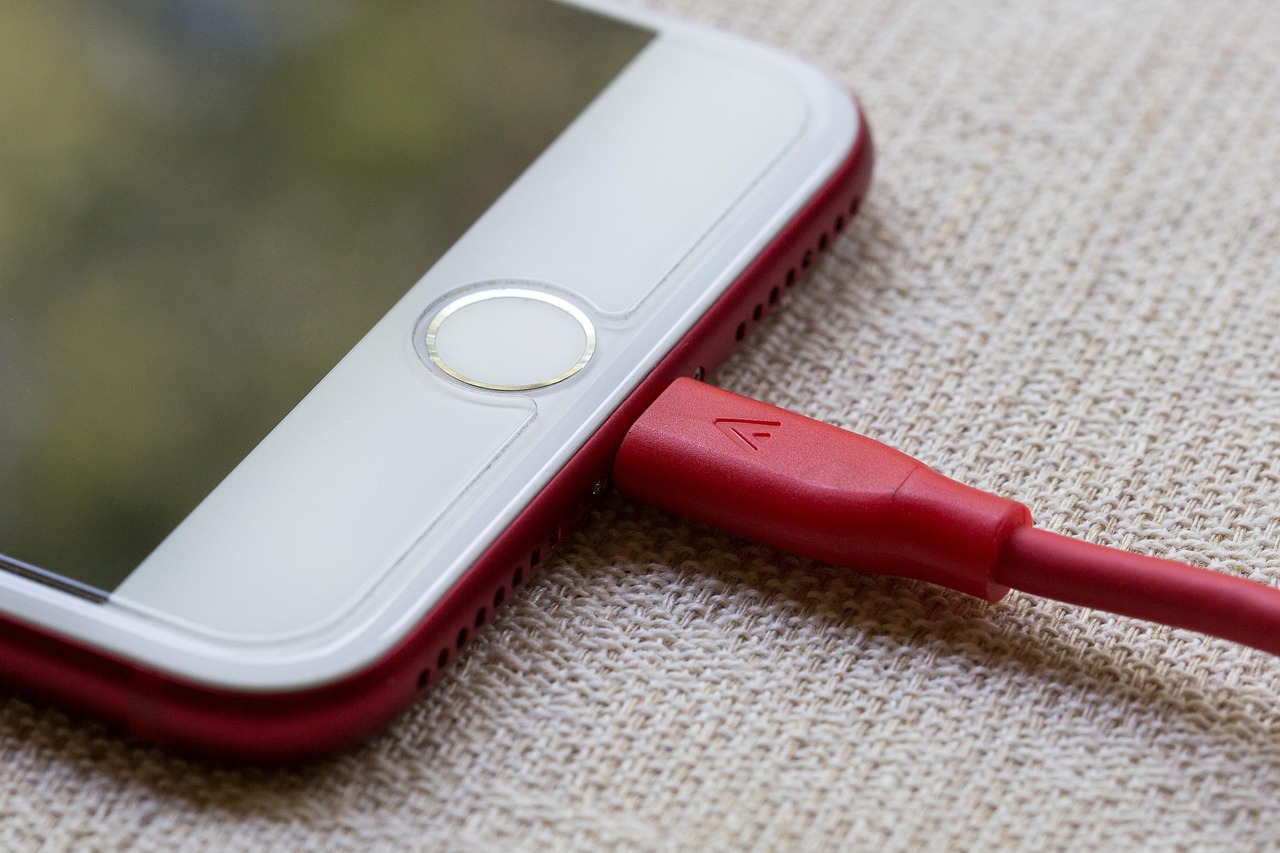
The moisture detected warning on Android devices typically indicates that there is unnecessary moisture present in the charging port. This warning is designed to prevent potential damage to the internal components of the device, as charging a device with moisture can lead to serious issues, including short circuits. Users often encounter the moisture detected error after exposure to rain, humidity, or even a spill. If your device is unable to charge due to the moisture detected charging port alert, it’s crucial to identify what might have caused this issue.
Common Causes of Moisture Detected Error
- Direct exposure to water or liquids
- High humidity environments
- Condensation due to temperature changes
- Using the device in the rain without protection
- Accumulation of dust or debris in the charging port
- Faulty sensors in the device
- Recent repairs that may have affected the port
Understanding the reasons behind the moisture detected warning can help users take proactive measures to avoid potential damage. Whether it’s drying the charging port or waiting for the moisture to evaporate, addressing the problem promptly is essential. Ignoring the moisture detected error could lead to more severe consequences, including the need for costly repairs or even device replacement.
How to Safely Dry Your USB Charging Port
When you encounter the moisture detected in charging port warning on your Android device, the first instinct is often to panic. However, taking immediate and correct action can prevent potential damage to your device. Understanding how to safely dry the USB charging port is crucial to avoid short circuits and maintain the functionality of your device. This section provides methods to assess the charging port health and effectively remove any water in the USB port.
| Method | Description | Effectiveness |
|---|---|---|
| Air Dry | Leaving your device in a dry, ventilated area. | Medium |
| Use a Blow Dryer | Gently blowing warm air into the charging port. | High |
| Absorbent Material | Using a cloth or paper towel for drying. | Low |
Before proceeding with any drying method, it’s essential to take a moment to assess your device’s charging port health. Inspect for any visible signs of damage or corrosion, which could indicate that a more serious issue is at play. Additionally, testing the charging cable and observing if it fits snugly can also signal whether water has compromised the port. Being proactive in identifying issues helps mitigate the risk of future malfunctions.
Assessing The Charging Port Health
Start by visually examining the charging port on your Android device. If you notice any foreign particles or a build-up of dirt, it could worsen the situation. Use a flashlight to get a better look inside. If there is noticeable moisture, ensure that the device is powered off before proceeding with drying methods. Taking these steps seriously will help in preserving your device, as effective moisture detection can save you from unnecessary repairs.
Removing Water From USB Port
Once you’ve assessed the situation, it’s time to focus on removing moisture. Here are some effective methods to safely dry the charging port:
Steps to Address The Moisture Issue
- Power Off the Device: Always turn off the device before attempting any drying methods.
- Inspect the Port: Look for visible moisture and check for debris.
- Air Dry: Leave the device in a warm, dry area for several hours.
- Use a Blow Dryer: Use a blow dryer on a cool setting, maintaining distance to avoid damage.
- Use Absorbent Material: Gently dab the outside of the port with a dry, absorbent cloth.
- Test Charging: Once you are confident that the port is dry, test it with a reliable USB charger.
By following these steps, you can effectively address the moisture detected charging port issue and minimize the risk of any long-term damage to your Android device. Remember that patience is key when waiting for a thorough drying process, as rushing could lead to more serious complications.
Bypass Methods: Charging Without Risk
When faced with the frustrating moisture detected charging port warning, it’s crucial to act carefully to avoid damaging your device. While some users may feel inclined to bypass the warning to charge their phone, this can lead to further complications. Knowing how to safely handle these situations can help you fix the moisture warning and prevent any detrimental effects on your device.
Preventive Tips for Android Users
- Keep your device away from water and humid environments.
- Regularly check the charging port for dirt or debris.
- Use a protective case that minimizes moisture exposure.
- Ensure that the charging cable and adapter are in good condition.
- Avoid charging your device when using it in extreme temperatures.
- Always dry your hands before handling your device.
For users who frequently encounter the samsung moisture message, understanding the potential bypass methods is essential. However, it is advisable to avoid stacking charging sessions when moisture is detected. If the warning persists, consider gently using a cotton swab or soft cloth to clean the charging port, ensuring a safe and accurate assessment of the moisture level. If possible, allow the device to dry in a well-ventilated area or seek professional assistance.
Remember, attempting to charge your device while moisture is detected can lead to long-term damage, so it’s crucial to prioritize safety over urgency.
In summary, while it may be tempting to bypass the moisture warning, a cautious approach is recommended to protect your device. Implementing the preventive tips listed will help reduce the chances of encountering this issue in the future and ensure that your Android device remains in top condition.
Can Sound Frequencies Help Remove Moisture?
Using sound frequencies as a method to remove moisture from a charging port is an innovative approach that has gained attention in recent years. Some research suggests that specific sound frequencies can produce vibrations that help dislodge water droplets trapped inside the USB port. While this method may not guarantee complete eradication of moisture, it could expedite the drying process when combined with other safe techniques. Sound frequencies operate on the principle of resonance, potentially allowing them to target and influence the tiny water particles that may be causing the moisture detected charging port warning.
Next Steps For Android Users
- Turn off your device immediately to prevent any electrical damage.
- Inspect the charging port visually for noticeable moisture or debris.
- Gently shake the phone to encourage any trapped water droplets to escape.
- Use a soft, lint-free cloth to dab the charging port carefully.
- Try using sound frequencies by playing a frequency-generating app nearby.
- Leave the device in a dry and warm area for several hours.
- If moisture persists, consider consulting a professional technician.
While employing sound frequencies may present a unique solution, it is essential to remember that conventional methods should not be neglected. Always approach moisture issues cautiously and prioritize the health of your device. Additionally, investigating other drying methods, such as using silica gel packets or leaving your phone in a rice bowl, might complement the potential effects of sound vibrations in combating moisture problems in the charging port.
Frequently Asked Questions
What causes the 'moisture detected in charging port' warning on Android devices?
The 'moisture detected in charging port' warning is typically triggered by water or humidity in the charging port, detected by sensors within the device, to prevent electrical short circuits.
How can I safely dry my USB charging port?
To safely dry your USB charging port, turn off your device, gently shake it to remove any excess water, then use a can of compressed air or a soft cloth to carefully clean the port. Avoid using heat sources.
Is it safe to charge my phone while the moisture warning is displayed?
It's advisable not to charge your phone while the moisture warning is displayed, as it could result in electric shorts or further damage to the device.
What are some bypass methods to charge my device without risking damage?
You can try using wireless charging instead, if supported by your device, or connecting to a power source through a different port (like a dock or adapter) if available.
Can using sound frequencies help in removing moisture from the charging port?
There is limited evidence to support the claim that sound frequencies can effectively remove moisture from a charging port; traditional drying methods are usually more reliable.
What should I do if my device continuously shows the 'moisture detected' warning even after drying?
If the warning persists, consider seeking professional help, as it might indicate an underlying issue with the device's sensors or components.
Are there any preventative measures to avoid the moisture detected warning?
To prevent this issue, avoid using your device in humid environments, and consider using a waterproof case if you anticipate exposure to moisture.
How long does it usually take for the charging port to dry out?
drying could take anywhere from a few minutes to several hours, depending on the level of moisture and environmental conditions, so it's best to wait before trying to charge.
Is the moisture detected charging port issue common in all Android brands?
Yes, this issue can occur in any Android device that has a USB charging port, although some brands may have better moisture resistance than others.
What should I avoid doing if my charging port is wet?
Avoid inserting any objects into the charging port, using heat sources like hair dryers, or attempting to charge the device until you're sure it's dry.