
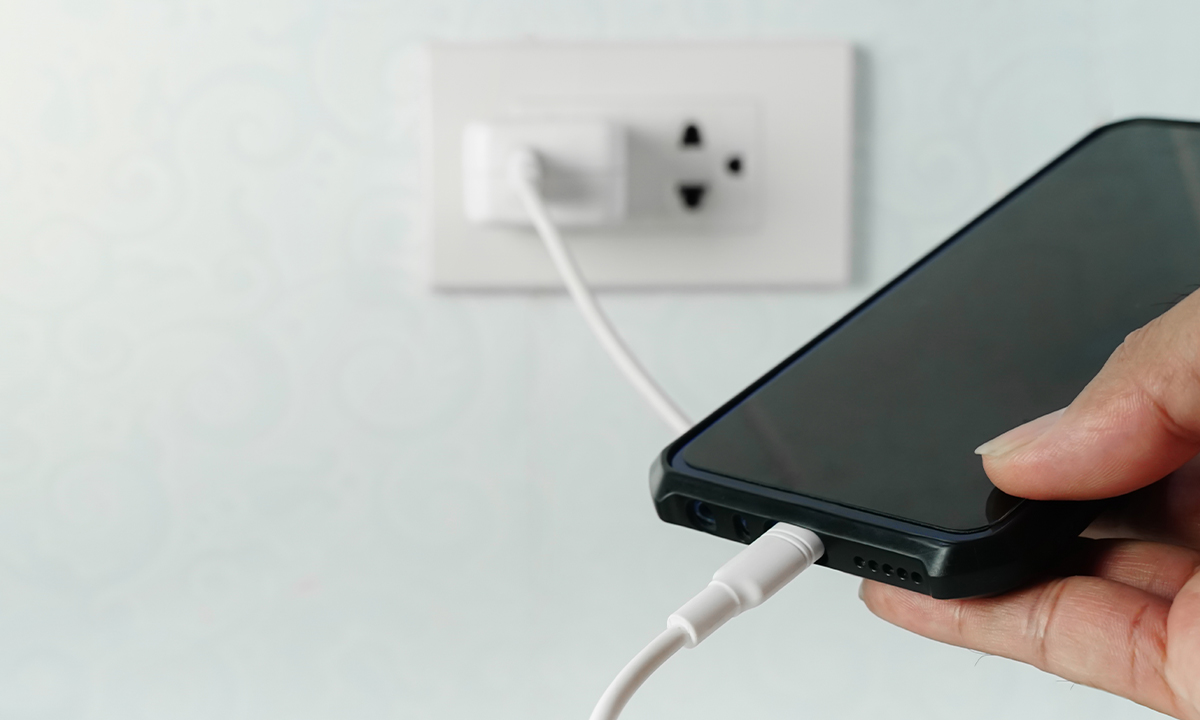
Experiencing no sound while charging your phone can be frustrating. This article explores the common causes behind this issue, primarily focusing on the interaction between charging cables, ports, and audio settings. First, it suggests checking the compatibility of your charging cable and port, as a faulty connection might lead to audio problems. Next, it provides easy fixes for adjusting audio output settings to ensure sound functions correctly even while your phone is charging. Additionally, the article discusses scenarios where switching to wireless audio options might resolve the issue or when a software reset may be necessary. By following these tips, you can rectify the no sound while charging phone problem quickly and efficiently.
Why Your Phone Loses Sound When Plugged In
Experiencing no sound while charging your phone can be frustrating, particularly when you’re trying to enjoy music or take calls. Several reasons can lead to this audio issue during charge. One major cause is poor connectivity between your cable and charging port. If there’s dust or debris in the port, or if the cable is damaged, it can interfere with the phone’s normal functioning, leading to sound loss. In some cases, a malfunctioning power adapter can also disrupt the phone’s audio output when plugged in.
Common Symptoms of Charging Audio Issues
- No audio output from headphones or speakers.
- Volume seems muted or extremely low while charging.
- Audio intermittently cutting out during charging.
- Phone buzzing or making unusual noises when plugged in.
- Apps crashing that are related to audio playback.
- Sound works fine when the charger is disconnected.
Another possibility for the phone no sound charging issue could be linked to software glitches. Updates to your operating system or specific applications may create compatibility issues that only arise when your phone is charging. Additionally, if you are using a non-certified charging accessory, this may prompt conflicts that hinder audio performance. Ensuring that you are using the right accessories and keeping your device updated can often resolve these issues.
Check Charging Cable and Port Compatibility
When you experience a situation where there is no sound while charging your phone, it is crucial to examine the compatibility of your charging cable and port. Inconsistent audio issues can often stem from faulty connections or incompatible accessories. It’s not uncommon for charging cables to have different capacities, particularly when considering older accessories or variations like Type C cables. If there is interference with the audio output, checking the connection can lead to solutions.
In many cases, the type c audio problem may arise due to a poorly designed or damaged charging cable. This can create a situation where the audio output is somehow interrupted during charging. To avoid such disruptions, ensure that you are using cables that are specifically designed for your device. Additionally, inspect the charging port for dust or debris that may interfere with the connection.
| Charger Type | Audio Output Capability | Common Issues |
|---|---|---|
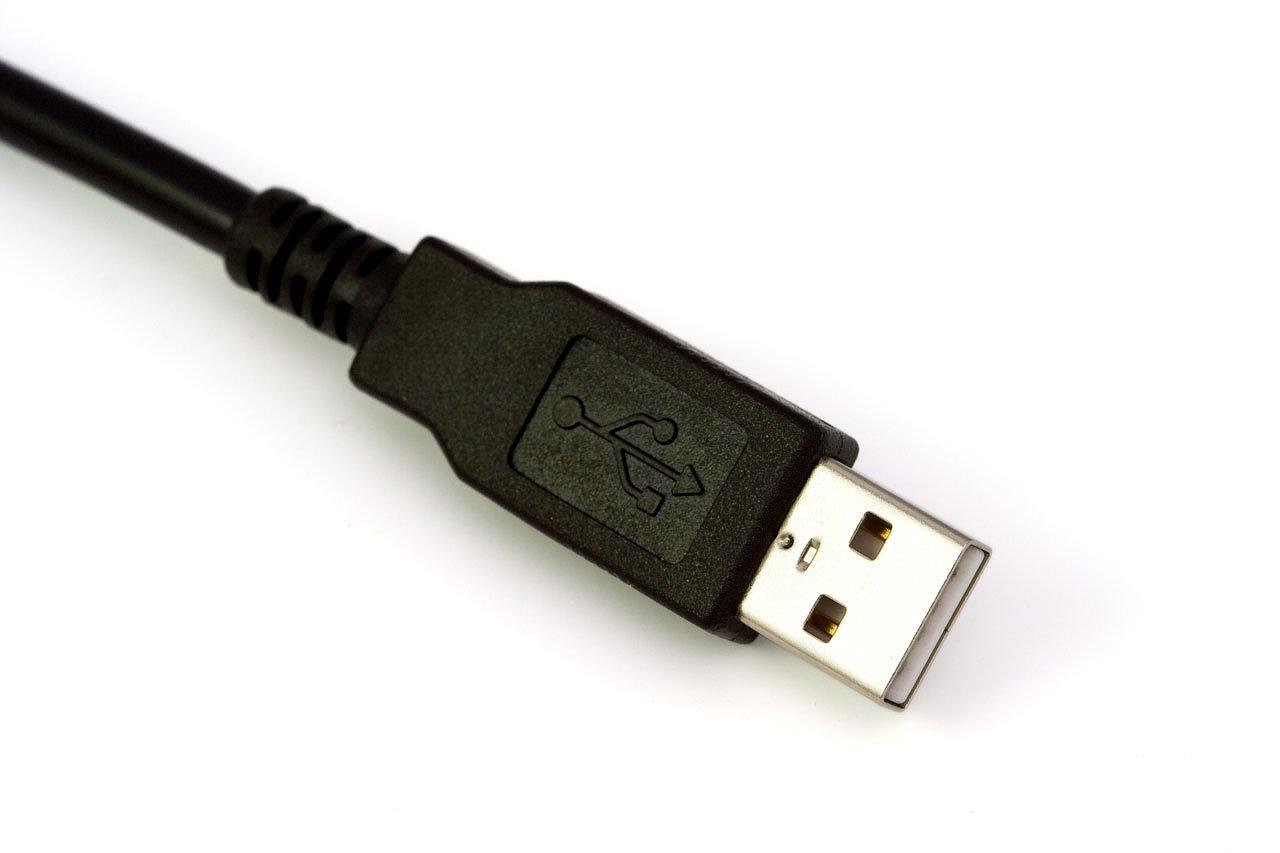
| USB Type-A | Limited or No Audio | Interference with audio output |
| USB Type-C | High-Quality Audio | Poor quality cables can lead to audio drops |
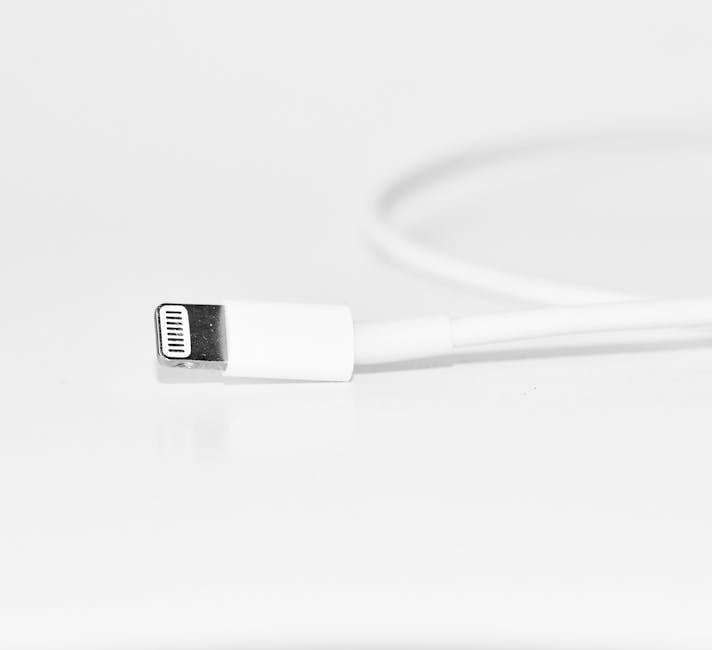
| Lightning Connector | Compatible with Apple devices | Sound issues with third-party cables |
Ultimately, if your phone’s speaker stops working while the charger is connected, it may also indicate that there are issues with device compatibility. Make sure all components are from reliable manufacturers to avoid these complications. Both the cable and phone port should seamlessly match to ensure an uninterrupted audio experience.
Steps To Diagnose Audio Problems
- Inspect the charging cable for any visible damage.
- Check the compatibility of your charger with your device.
- Clean the charging port of your phone.
- Test the audio output with another compatible charger.
- Restart your phone to clear any temporary software issues.
- Ensure that the audio settings are properly configured.
Inspect Your Charging Cable
Checking the status of your charging cable is vital. Over time, cables can wear out or become frayed, which may impact functionality. Make sure to use a cable that meets industry standards. If the audio problem persists even with a different cable, you may need to consider further troubleshooting options.
Check Audio Settings
Lastly, do not forget to review your audio settings when you encounter no sound while charging your phone. Sometimes, software settings can inadvertently change, leading to disruptions in audio playback. This is especially true if you’ve recently updated your device or installed a new app. Make adjustments as necessary to restore sound functionality.
How to Fix Audio Output Settings While Charging
If you’re experiencing issues with no sound while charging your phone, the problem could stem from conflicts between your device’s audio output settings and its charging port. Often, the charging port blocks sound, inadvertently disabling audio functions when connected. This can lead to frustrating moments when you’re attempting to enjoy music or online videos while your phone is charging.
To address this, start by checking the audio output settings on your device. Ensure that the volume is turned up and that the correct audio output is selected. Sometimes, the device may switch to a different output, such as Bluetooth or wired headphones, when charging begins. Additionally, inspect your charging cable and port for any debris or damages that could interfere with audio signals.
Tips For Fixing Sound Issues
- Check if the phone is set to silent or Do Not Disturb mode.
- Disconnect any Bluetooth connections to rule them out as the source of the issue.
- Inspect the charging port for dirt or lint that might block sound functionality.
- Toggle headphone mode on and off; sometimes, devices mistakenly think headphones are connected.
- Restart your device to refresh the audio output settings.
- Update your phone’s software as updates can fix sound-related bugs.
- Consider using a different charging cable or adapter to see if the issue persists.
If the aforementioned actions do not resolve the issue, it may be worth exploring more technical solutions, such as factory resetting your phone or checking for hardware problems. These steps will help ensure you regain your audio functionality while your device is charging.
Preventive Measures To Avoid Future Issues
To prevent sound not working while charging in the future, keep your charging port clean and free of any obstructions, as this minimizes the risk of blocking sound signals during charging sessions. Additionally, using high-quality charging accessories can keep your device functioning optimally and avoid similar problems down the road. Regularly updating your device’s software is another critical preventive step, as manufacturers often address such bugs with new releases.
When to Try Wireless Audio or Software Reset
Experiencing an audio issue during charge can be a frustrating situation, especially when you need to use your phone for calls or notifications while it’s plugged in. One of the potential reasons for no sound while charging your phone is that the charging port blocks sound transmission. It’s essential to determine if the problem stems from your audio settings or the physical components of your device. In some cases, switching to wireless audio can alleviate the issue, allowing you to enjoy music or calls without any interruptions.
Actionable Steps To Fix Charging Sound Issues
- Check and clean the charging port to remove any debris that may be blocking sound.
- Ensure your volume settings are properly adjusted before plugging in your device.
- Disconnect any accessories that may interfere with audio transmission.
- Switch to wireless audio options, such as Bluetooth headphones or speakers.
- Perform a software reset to refresh your device’s settings.
- Update your device’s software to the latest version to fix any bugs.
- If the issue persists, consider visiting a professional repair service for further diagnosis.
Knowing when to try wireless audio or perform a software reset is crucial. Transitioning to a wireless audio setup not only helps bypass potential sound blockages due to the charging port but also provides greater flexibility and convenience. If you find that the audio issues continue even after trying the steps listed above, a software reset may help restore the audio functionality. Remember that maintaining your device’s software is vital to ensure a seamless audio experience regardless of whether it’s charging or not.
Frequently Asked Questions
Why does my phone have no sound while charging?
The absence of sound while charging may be due to interference from the charging cable or port, software settings that prioritize charging over audio output, or a hardware issue.
What causes sound issues when I connect my phone to a charger?
Sound issues can arise from various sources, including compatibility problems between the charger and phone, improper audio output settings, or even damaged charging ports.
Can a faulty charging cable lead to no sound issues?
Yes, a faulty charging cable can interfere with audio transmission, leading to a lack of sound while your phone is charging.
How can I check if my charging port is compatible?
To check compatibility, ensure that the charging cable fits snugly into the port and that it matches the specifications recommended by the phone manufacturer.
What audio output settings should I look at when my phone is charging?
Check that your phone’s audio output settings are configured correctly, ensuring that the device isn’t set to silent mode, do not disturb, or routing audio to an unwanted output source.
How do I fix audio settings to restore sound while charging?
Try adjusting the audio output settings through your phone's settings menu, ensuring that the device is set to the desired audio output, such as speaker or headphones.
Are there other potential fixes if sound does not return while charging?
Yes, if sound does not return, consider trying a different charger, cleaning the charging port, or adjusting your device settings to troubleshoot the issue.
When is it a good idea to try wireless audio connections?
Switching to wireless audio connections can be a good idea if you encounter persistent sound issues while charging through the wired connection.
Can a software reset help with sound issues while charging?
Yes, performing a software reset can resolve audio glitches by refreshing the system and clearing temporary issues that might affect sound output.
What should I do if none of the fixes work?
If none of the fixes work, it may be indicative of a hardware issue, and you should consider seeking professional repair services or contacting customer support for your device.