
Is your phone stuck in headphone mode? This common issue can leave you frustrated, but there are solutions. In the blog post, we explore why your phone might be stuck in headphone mode, which can happen due to debris in the headphone jack or software glitches. Before panicking, try a few quick fixes like restarting your phone or toggling headphone settings. Cleaning the headphone jack or Type-C port is also recommended, as dirt and grime often cause connectivity issues. If these measures don’t resolve the problem, it may be time to visit a repair shop and seek professional help. With these tips, you can easily troubleshoot and hopefully resolve the dilemma of your phone being stuck in headphone mode.
Why Your Phone Is Stuck in Headphone Mode
When your phone is stuck in headphone mode, it can be a frustrating experience, limiting your ability to enjoy calls and multimedia. This issue often occurs when the device erroneously believes that headphones are plugged in. Various factors might contribute to this, including software glitches or hardware failures.
Common Reasons for Phone Headphone Mode Activation
- Dust or lint accumulation in the headphone jack.
- Software glitches from recent updates or apps.
- Headphone jack or connector damage.
- Moisture intrusion that affects the sensor.
- Faulty headphones that may be incorrectly detected.
- External accessories interfering with audio output.
- Incorrect settings or configurations in audio options.
Identifying the exact reason your phone is stuck in headphone mode is crucial for an effective headphone mode fix Android. Depending on the cause, you may find simple solutions that can resolve the issue without requiring extensive repairs. Always consider trying a few basic troubleshooting steps to unsettle this mode before seeking professional help.
Try These Quick Fixes Before Panicking
If you’re dealing with a situation where your phone is stuck in headphone mode, it can be frustrating. The issue of no sound stuck in headset mode often leads users to think they might need a new device. However, before jumping to conclusions, there are several quick fixes you can try that may resolve the issue without the need for technical support.
Understanding the potential causes of this problem can make it easier to identify the right fix. Many users have reported issues where their phone not switching to speaker becomes a nuisance, causing confusion and delay. This can be due to hardware issues, software glitches, or even dirt in the headphone jack. In this section, I’ll guide you through some troubleshooting steps to get your device back to normal.
Troubleshooting Hardware Problems
Before delving into software issues, it’s vital to first address any potential hardware problems. These can include a misaligned headphone jack or debris lodged within it. A thorough inspection of the headphone port may reveal the reason behind your phone stuck in headphone mode. Ensure that there is nothing obstructing the connection, which can cause your phone to mistakenly think that headphones are still connected.
Steps To Fix the Headphone Mode Issue
- Unplug and reinsert any connected headphones to reset the device’s audio settings.
- Inspect the headphone jack and remove any lint or debris using a toothpick or compressed air.
- Restart your phone to resolve any minor software glitches.
- Test with different headphones to determine if the issue lies with your current set.
- Check for any software updates that may include fixes for audio-related issues.
- Reset your phone settings to default to eliminate any misconfigurations.
- If all else fails, consider visiting a repair shop for in-depth diagnostics.
By following these steps, many users have successfully resolved their issues. If, after trying these solutions, your phone stuck in headphone mode persists, further investigation into software or hardware replacements might be necessary.
Remember, dealing with audio issues can often be done without needing professional assistance, but don’t hesitate to seek help if the problem continues. It’s always better to be safe than sorry when it comes to diagnosing your device’s health.
Clean the Headphone Jack or Type-C Port
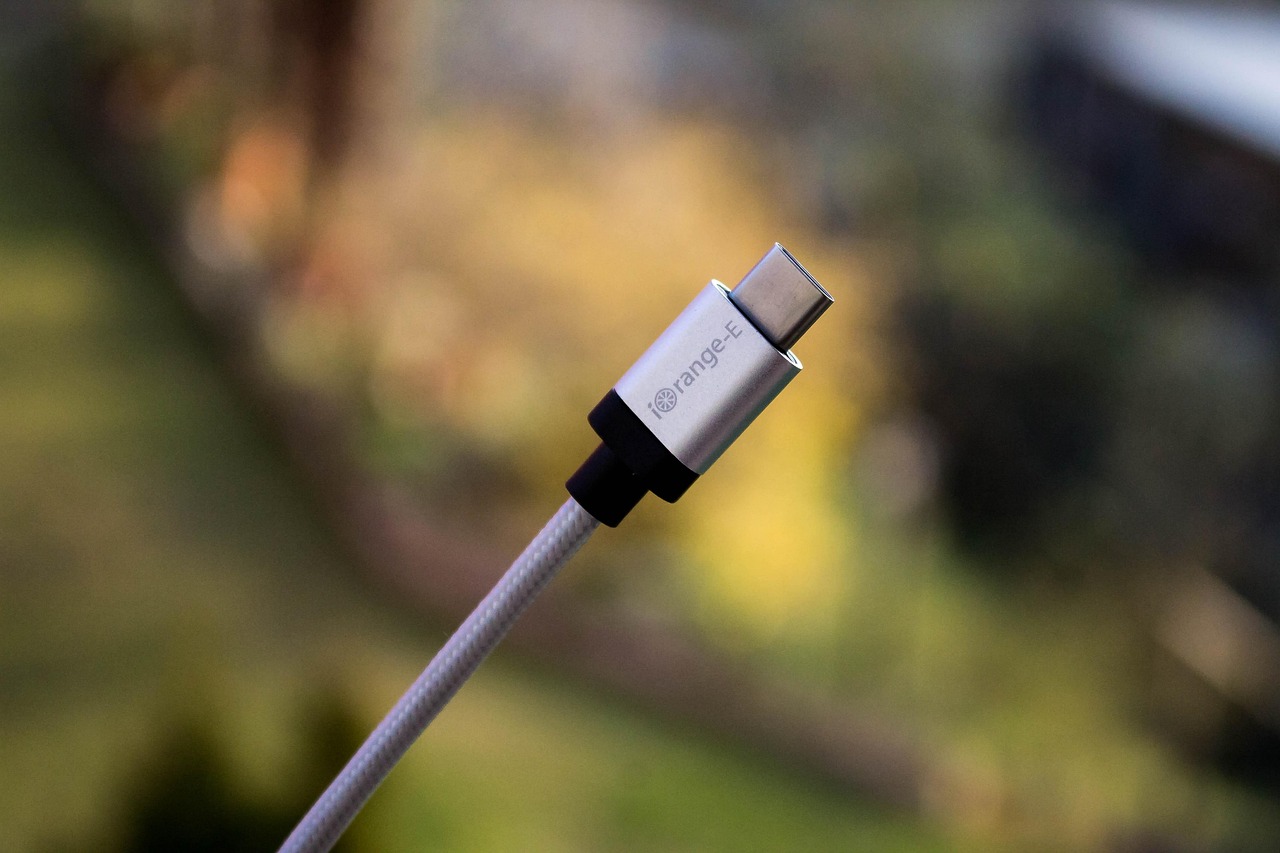
One of the most common issues leading to a phone being stuck in headphone mode is dirt or debris covering the headphone jack or Type-C port. This can cause the device to mistakenly think that headphones are still plugged in, resulting in the headphone icon not disappearing from the display. To resolve this, it’s essential to carefully clean these ports without causing any damage. Use a can of compressed air or a soft, dry cloth to gently remove any dust that may have accumulated.
| Cleaning Method | Recommended Tool | Step Instructions |
|---|---|---|
| Compressed Air | Can of Compressed Air | Spray into the port from a few inches away. |
| Soft Toothbrush | Toothbrush (soft bristle) | Gently brush around the port, removing debris. |
| Microfiber Cloth | Microfiber Cloth | Wipe the exterior and the edge of the port carefully. |
If cleaning the headphone jack or Type-C port doesn’t resolve the issue and you still experience problems such as the speaker not working after unplug, there might be underlying hardware issues. In this case, a more thorough examination of the components may be required. Check for any signs of corrosion or visible damage around the port area. Sometimes, simply reconnecting the headphones back and forth can trigger the device to detect that they are no longer in use.
Possible Indicators of Hardware Issues
- No sound coming from the speaker after removing headphones.
- Inconsistent headphone connection when plugged in.
- Headphone jack feels loose or unsteady.
- Liquid damage indicators triggered near the port.
- Unusual sounds or static while using headphones.
- Visible physical damage to the port or connectors.
Addressing any dirt or obstruction in the headphone jack or Type-C port is a vital step in fixing the issue of your phone being stuck in headphone mode. However, if cleaning doesn’t help and you notice some of the above indicators, it may suggest that the problem lies deeper within the device’s hardware. Always consider seeking professional assistance to avoid causing further damage to your phone. Regular maintenance and careful use of your device will help keep such issues at bay.
When to Visit a Repair Shop
If you have tried various fixes and your phone is still stuck in headphone mode, it may be time to consider visiting a repair shop. This situation often indicates a deeper underlying issue that can’t be resolved through simple troubleshooting steps. Professional technicians can diagnose potential hardware problems or software glitches that you may not be equipped to handle on your own.
Actionable Steps To Ensure Proper Functionality
- Check for software updates regularly to ensure your device operates on the latest version.
- Inspect your headphone jack or Type-C port for visible damages or obstructions.
- Use different headphones to determine if the issue lies with the original accessory.
- Restart your phone to reset any temporary software glitches.
- Test Bluetooth settings to make sure your device isn’t connected to external audio hardware.
- Perform a factory reset as a last resort, ensuring all data is backed up first.
Recognizing when a device requires professional assistance is crucial. Ignoring persistent issues could lead to further damage or costly repairs. Always ensure that you consult with a reputable repair shop that specializes in smartphone problems, as this can increase the likelihood of a successful fix. Remember, taking timely action could save you time and money in the long run.
Frequently Asked Questions
What causes a phone to get stuck in headphone mode?
A phone may get stuck in headphone mode due to dirt or debris in the headphone jack, a software glitch, or a malfunctioning headphone accessory.
What are the signs that my phone is stuck in headphone mode?
Signs include no sound from the speakers, a headphone icon displayed on the screen, and the inability to adjust volume through the main settings.
What quick fixes can I try if my phone is stuck in headphone mode?
You can try restarting your phone, toggling the headphone connection, or checking the audio settings for any anomalies.
What tools do I need to clean the headphone jack or Type-C port?
Typically, you can use a small flashlight, a can of compressed air, or a soft, dry brush to clean the headphone jack or Type-C port.
Is it safe to use water or alcohol to clean the headphone jack?
It’s not recommended to use water or alcohol as they can damage internal components; instead, use dry cleaning methods.
How can I reset my phone to fix the headphone mode issue?
You can perform a factory reset as a last resort, but be sure to back up your data to avoid losing important information.
Are there any app solutions for the headphone mode problem?
Yes, some apps can help reset audio settings, but they might not work for hardware issues. It’s always better to start with basic restarts and checks.
When should I consider taking my phone to a repair shop?
If all troubleshooting methods fail, or if there’s physical damage to the headphone jack or port, it’s best to visit a professional repair shop.
Will a software update help with the headphone mode issue?
Yes, sometimes updating the software can fix bugs that cause issues like being stuck in headphone mode.
What if my phone is stuck in headphone mode after removing connected headphones?
This can happen due to a software glitch or hardware malfunction, and you should try the simple fixes outlined before seeking professional help.