
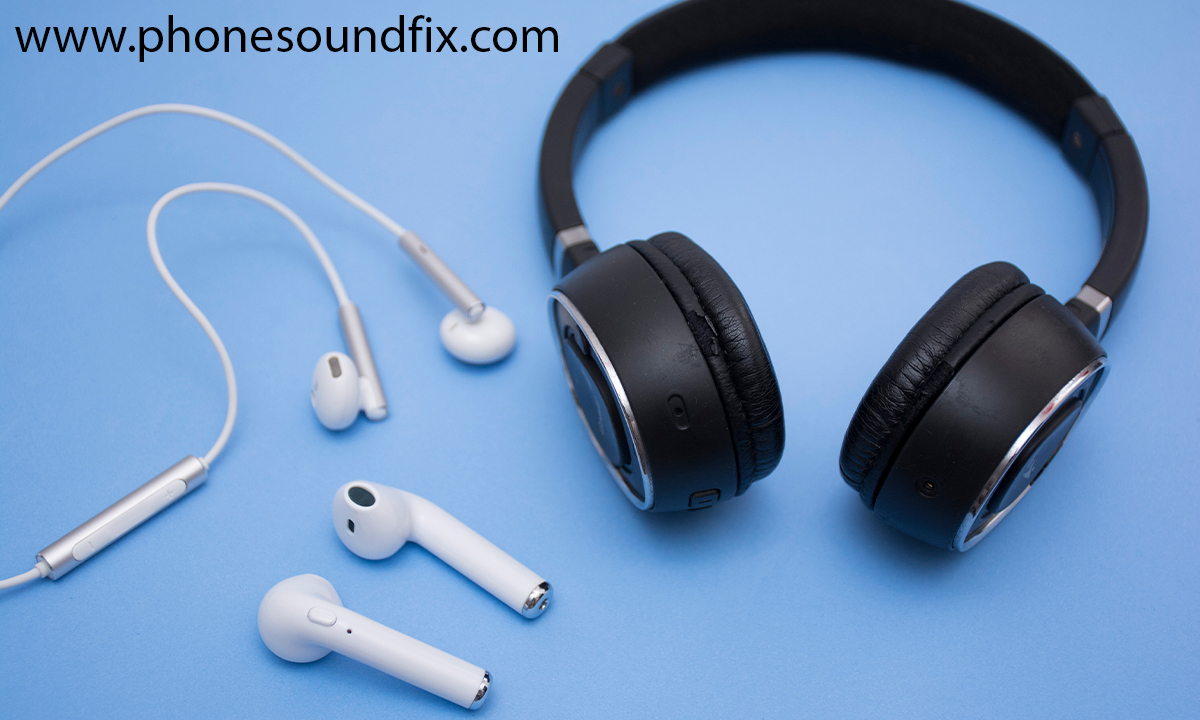
Having issues with bluetooth headphones distorted sound can be frustrating, but this blog post provides a comprehensive troubleshooting guide. It begins by exploring common causes of distorted audio in Bluetooth headphones, such as interference and low battery. The first actionable step is to reset your headphones, which can often resolve minor glitches. Next, the article explains how to detect and avoid Bluetooth interference, which can degrade sound quality. For those facing persistent problems, it offers advanced tips, including checking for firmware updates and ensuring device compatibility, which can significantly enhance audio performance. By following these step-by-step solutions, users can restore clarity and enjoy a better listening experience.
What Causes Distorted Audio in Bluetooth Headphones?
Bluetooth headphones can experience distorted sound due to several factors that often stem from connectivity issues or hardware limitations. One common problem is the bluetooth audio glitch that can manifest when the headphones are not properly paired with the audio source. This glitch may result in choppy or static-filled audio, severely affecting your listening experience. Additionally, environmental factors such as interference from other wireless devices can also contribute to audio distortion.
Common Causes of Distorted Sound
- Poor Bluetooth connection or pairing issues
- Interference from other electronic devices
- Low battery levels in the headphones
- Incompatible audio codecs between devices
- Obstructions between the headphones and audio source
- Defective headphone hardware or components
- Outdated firmware on the headphones or source device
Understanding these causes is essential for anyone wondering how to fix distorted sound in their Bluetooth headphones. By identifying the root cause, you can take appropriate steps to rectify the issue, ensuring a clearer and more immersive audio experience. If you find that conventional troubleshooting methods don’t resolve the problem, exploring advanced solutions such as firmware updates or device compatibility checks can be beneficial.
Resetting Your Headphones: A Simple First Step
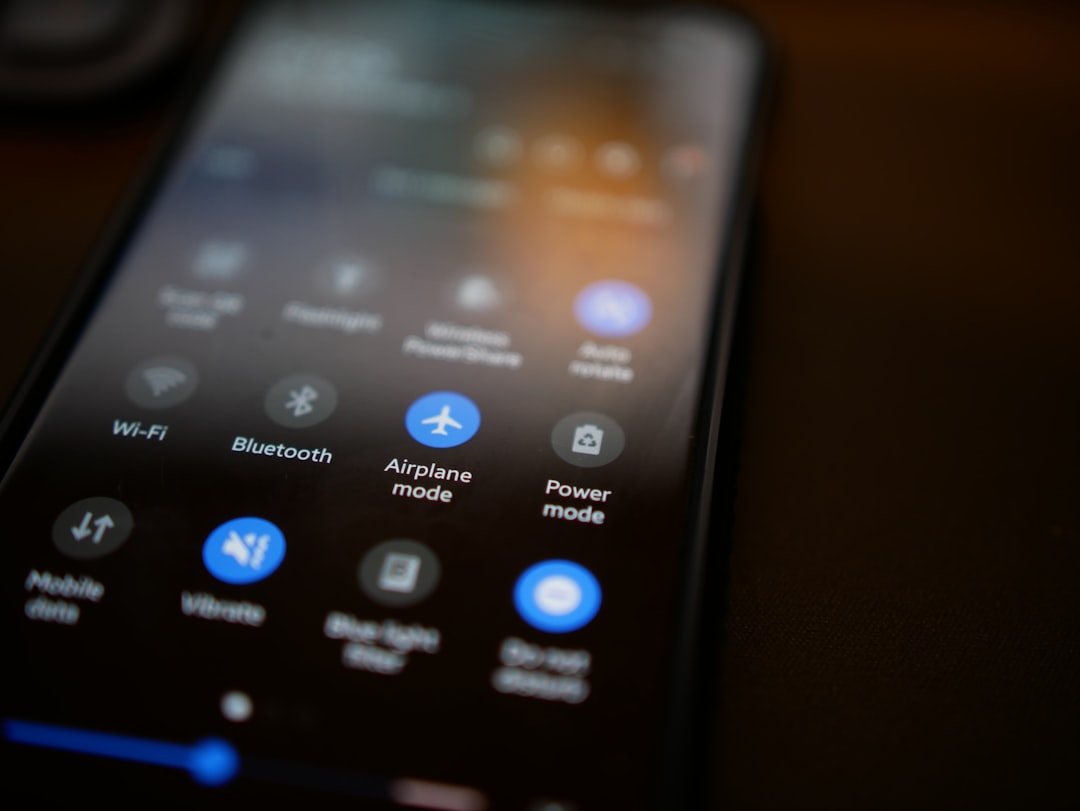
Resetting your bluetooth headphones can often resolve the frustrating issue of distorted sound. This straightforward process not only clears any temporary glitches but also restores the factory settings that might be contributing to the audio problems. Many users find that a simple reset is the key to restoring premium sound quality.
When your bluetooth headphones exhibit distorted sound, it’s crucial to understand the common issues that might be the cause. Factors like battery levels, device compatibility, and connection quality can significantly affect audio performance. In some cases, the distortion might not be a product of the headphones themselves but rather an issue with the connected device.
Common Causes of Distorted Sound in Bluetooth Headphones
| Cause | Description | Solution |
|---|---|---|
| Battery Level | Low battery can lead to poor audio quality. | Charge fully before use. |
| Bluetooth Interference | Signals from other devices can disrupt sound. | Avoid crowded areas and reset connections. |
| Device Compatibility | Older devices may not support current audio codecs. | Update device software or consider using newer devices. |
| Worn Drivers | Physical wear can distort audio performance. | Consult a technician for repair or replacement. |
Now that you have an understanding of potential issues, it’s essential to follow specific troubleshooting steps to rectify bluetooth headphones distorted sound. Addressing these issues methodically will often yield the best results, ensuring your listening experience is restored to its rightful quality.
Troubleshooting Steps
- Check the battery level of your headphones.
- Reset your bluetooth headphones to factory settings.
- Ensure your device’s bluetooth is up to date.
- Disconnect other nearby bluetooth devices.
- Try connecting to a different device to pinpoint the issue.
- Inspect for any physical damage or wear.
- Consult the user manual for advanced troubleshooting.
Identifying Common Issues
Before diving into troubleshooting, understanding the common issues surrounding distorted sound in bluetooth headphones is essential. Many times, users overlook simple checks like updating the software of their connected device or ensuring a clear line of sight between their headphones and the audio source, leading to weaker signals and audio distortions.
Steps To Resolve Sound Problems
Once you’ve identified potential causes, implementing the previously mentioned troubleshooting steps systematically can greatly improve your audio quality. For deeper issues, check if firmware updates are available for your headphones or device. Regular updates can enhance compatibility and fix known audio issues, ensuring a seamless listening experience.
Bluetooth Interference: How to Detect and Avoid It
Whenever you experience bluetooth headphones distorted sound, it’s crucial to consider the possibility of Bluetooth interference. This phenomenon can disrupt your listening experience, causing annoying audio issues such as lag, dropouts, and distortions. Understanding how to detect and avoid interference can ensure a smoother and more enjoyable listening session.
One primary contributor to Bluetooth audio issues is latency, which can be particularly pronounced in certain environments or when using specific devices. Addressing this factor can significantly improve your audio experience. Ensuring your device supports the latest Bluetooth codecs can help in reducing these latency issues, leading to improved sound quality in your headphones.
Effects of Bluetooth Audio Lag
- Delayed audio sync with video content
- Sluggish response during music playback
- Inconsistent volume levels
- Increased risk of distortion
- Frustrating interruptions and dropouts
- Incompatibility with certain applications
To effectively tackle earbuds sound issues, it’s essential to understand various methods to mitigate audio lag. Many users have reported improvements by switching to devices that have better compatibility with their Bluetooth headphones. Checking for firmware updates can also enhance performance, as manufacturers frequently release updates that improve stability and audio quality.
Understanding Latency
Latency refers to the delay between the source’s audio output and the sound you hear in your Bluetooth headphones. This lag can be caused by various factors, including the Bluetooth version, codec compatibility, and the distance between the source device and the headphones. Understanding these elements is fundamental in identifying ways to reduce latency and improve overall sound quality.
Mitigating Audio Lag Issues
To improve your wireless audio experience, consider the following steps to mitigate audio lag:
- Ensure both your audio source and headphones are fully updated.
- Position your devices closer together to strengthen the connection.
- Minimize obstructions between the source and the headphones.
- Switch to devices with advanced codec support.
- Test different Bluetooth audio settings within your device.
By being proactive in addressing these factors, you can significantly reduce the incidence of distorted sound in your Bluetooth headphones, thus providing a better listening experience overall.
Advanced Tips: Firmware Updates and Device Compatibility
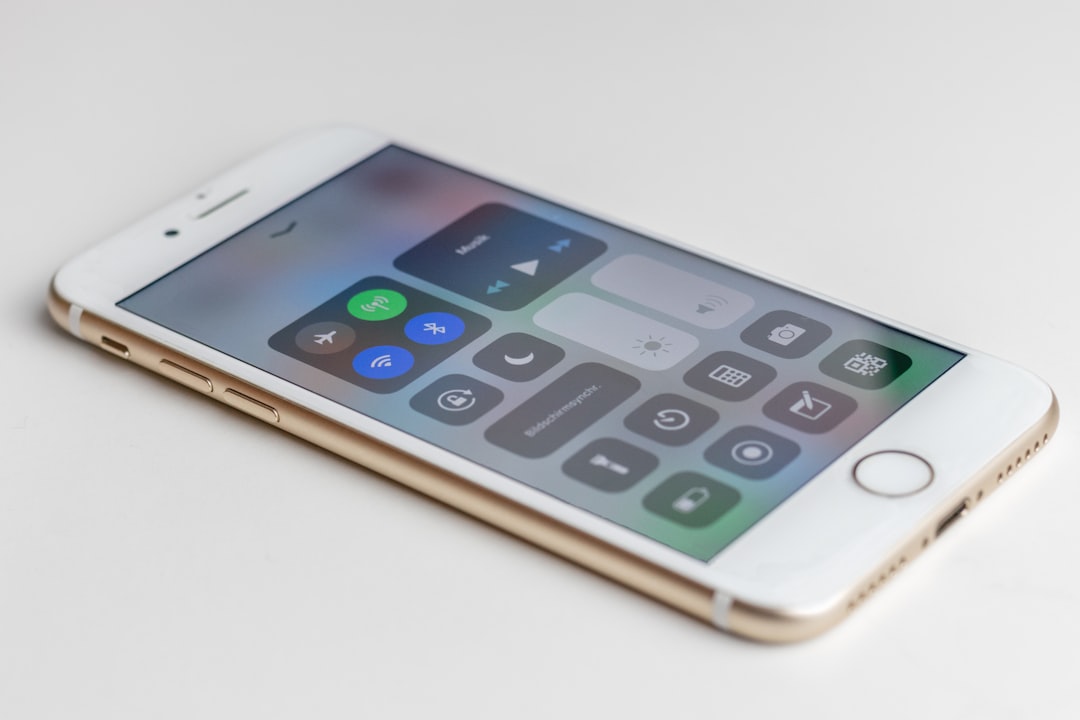
When facing issues with bluetooth headphones distorted sound, considering firmware updates can significantly enhance audio performance and device compatibility. Many manufacturers regularly release updates that address bugs and improve overall sound quality. By staying up to date with the latest firmware, you may resolve sound crackling issues in your wireless headphones. Ensure that you check your manufacturer’s website or app for any available updates to maximize your headphones’ capabilities.
Key Takeaways
- Always keep your headphone firmware updated to prevent audio distortions.
- Check compatibility with devices to avoid connectivity issues.
- Regularly reset your headphones to clear any temporary glitches.
- Avoid using multiple Bluetooth devices simultaneously to reduce interference.
- Consult the manufacturer’s support for specific troubleshooting tips.
- Ensure your device’s operating system is also updated.
Additionally, be aware of the importance of device compatibility when troubleshooting audio problems. Sometimes, how to fix distorted sound in your headphones may not lie in the headphones themselves, but rather in the device they are paired with. If you frequently experience issues like wireless headphones sound crackling, it could be due to an outdated Bluetooth version or codec incompatibility. Always check the specifications of both your headphones and the paired device to ensure they are fully compatible.
Frequently Asked Questions
What are common causes of distorted sound in Bluetooth headphones?
Common causes of distorted sound in Bluetooth headphones include Bluetooth interference, hardware issues, poor audio source quality, and low battery levels.
How can I reset my Bluetooth headphones to fix sound distortion?
To reset your Bluetooth headphones, refer to the user manual for specific instructions, which typically involve holding down a combination of buttons for a few seconds until the lights indicate a reset.
What types of devices can interfere with Bluetooth audio?
Devices that can interfere with Bluetooth audio include microwaves, Wi-Fi routers, cordless phones, and other wireless equipment operating in the same frequency range.
How do I check if my Bluetooth connection is stable?
To check Bluetooth stability, move closer to your audio source, disconnect and reconnect the device, or use a Bluetooth diagnostics tool if your device supports it.
Can low battery affect the sound quality of my Bluetooth headphones?
Yes, low battery levels can significantly affect sound quality and lead to distortion, so ensure your headphones are adequately charged.
How do firmware updates affect Bluetooth headphone performance?
Firmware updates can improve Bluetooth headphone performance by fixing bugs, enhancing compatibility, and introducing new features that can alleviate sound distortion.
Why is it important to check device compatibility with Bluetooth headphones?
Checking device compatibility is important because mismatched codecs or Bluetooth versions can lead to audio distortion or reduced sound quality.
Can I prevent Bluetooth interference from affecting my audio experience?
To prevent Bluetooth interference, try to minimize the distance between your headphones and audio source, eliminate obstacles, and reduce the number of devices connected to Bluetooth simultaneously.
What should I do if all troubleshooting steps fail to resolve the distortion?
If all troubleshooting steps fail, consider contacting the manufacturer’s customer service for further assistance or checking for warranty options for repairs.
Are there specific settings that can enhance sound quality on Bluetooth headphones?
Yes, adjusting equalizer settings on your audio device or selecting higher quality audio streaming options can enhance the sound quality on Bluetooth headphones.