
Experiencing no sound from external speakers on your smart TV can be frustrating. This blog post offers practical solutions to troubleshoot the issue. First, ensure that the audio output settings on your smart TV are correctly configured to the external speakers. Next, check if the HDMI ARC feature is enabled, as it is crucial for transmitting audio. The article highlights common setup mistakes that could lead to sound issues. Sometimes, the problem may be as simple as a faulty cable or port, so trying different options is worth the effort. Finally, updating the firmware or resetting the audio settings may resolve persistent problems. By following these steps, you can effectively address the issue of no sound from external speakers on smart TV and enhance your viewing experience.
Check Audio Output Settings on Your Smart TV
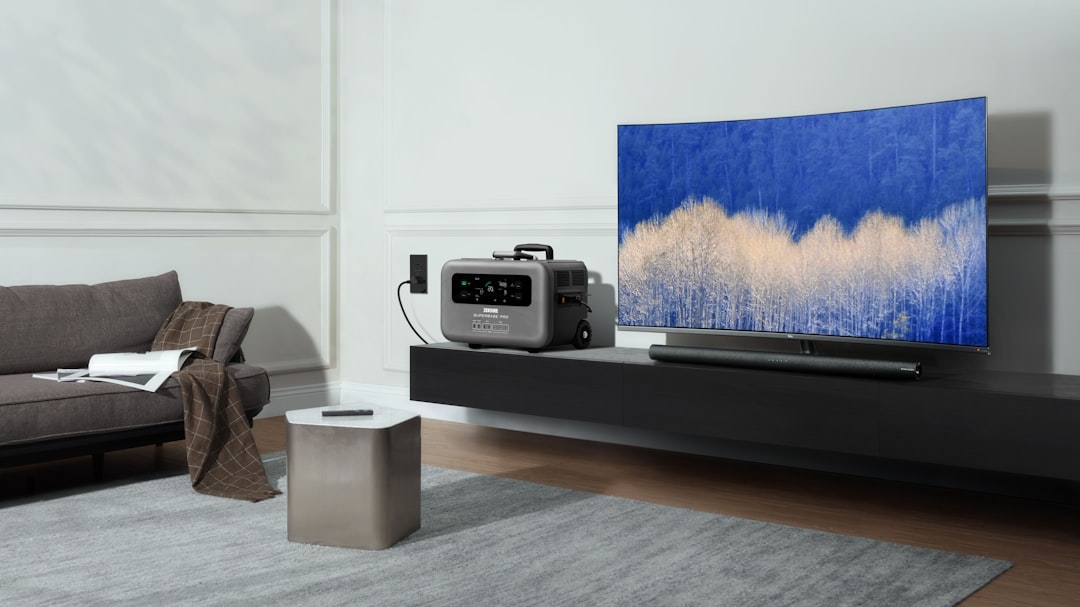
One of the first steps to troubleshoot the issue of no sound from external speakers on smart TV is to check your audio output settings. Sometimes, the audio source may inadvertently be set to internal TV speakers, causing the external speakers to remain silent. To ensure proper output, navigate to your TV’s settings menu and look for the ‘Audio’ or ‘Sound’ section. Here, you should confirm that the correct external speaker option is selected, ensuring it’s not muted or set to a very low volume level.
Common Causes
- Incorrect Audio Output Selection: The TV may be set to the internal speaker output.
- Loose Connections: Wires between TV and speakers might be loose or disconnected.
- Compatibility Issues: The external speakers may not be compatible with the TV.
- Volume Settings: The volume on the external speakers can be turned down or muted.
- Faulty Speakers: The speakers may be damaged or malfunctioning.
- Audio Format Settings: The audio format output may not be supported by the external speakers.
Once you have verified that the correct settings are applied, if you still experience tv audio not working, it may be beneficial to explore other configurations such as checking if the HDMI ARC is enabled. Additionally, you might want to test different cables or ports as sometimes these might be the source of the connectivity issues. Following these steps should help you diagnose and fix the external speaker no sound issue effectively.
Is HDMI ARC Enabled? Common Setup Mistakes
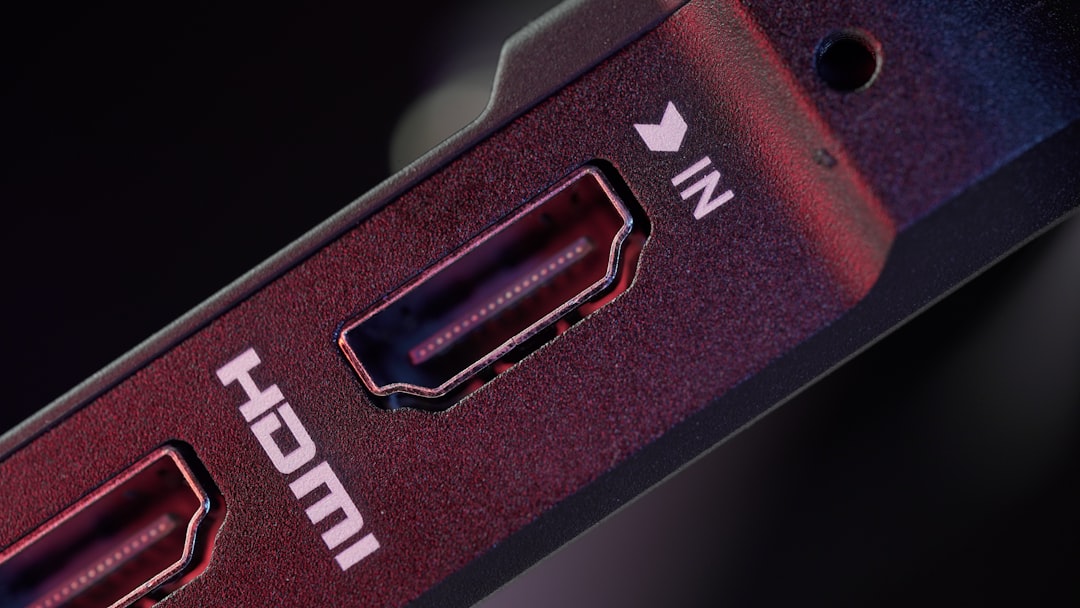
When troubleshooting issues like no sound from external speakers on smart tv, it’s vital to check whether HDMI ARC (Audio Return Channel) is enabled. This feature allows audio to flow from your TV to an external sound system using a single HDMI cable, streamlining your audio setup. However, several common mistakes can cause sound issues, particularly when setting up your smart TV’s sound settings or connecting external speakers. Recognizing these mistakes is key to achieving optimal sound quality.
One common error is failing to ensure that the correct HDMI port is being used. Not all HDMI ports on a smart TV support ARC functionality, so it’s essential to refer to the TV manual to locate the proper port. Additionally, your connected device, such as a soundbar or audio receiver, must also have ARC capability. If these requirements are not met, users may experience hdmi arc no sound issues. Moreover, cable quality and compatibility can also affect audio transmission.
| Device | Supports ARC | Common Issues |
|---|---|---|
| Smart TV | Yes/No | Incorrect HDMI port |
| Soundbar | Yes/No | Improper setup |
| AV Receiver | Yes/No | Cable quality problems |
| HDMI Cable | N/A | Non-HDMI ARC compatible |
To resolve sound issues, observing the correct settings on your smart TV is crucial. Sometimes the volume settings or audio output might inadvertently get changed, leading to no sound output. Checking and adjusting these settings can often remedy the problem before delving into more complex fixes.
Steps For Resolution
- Check that your TV is connected to the correct HDMI ARC port.
- Verify that the external speakers are powered on and set to the right input.
- Ensure HDMI ARC is enabled in your smart TV sound settings.
- Inspect your HDMI cable for any damage and make sure it’s ARC compatible.
- Adjust the volume settings on both your TV and external speakers.
- Test a different HDMI cable or port if issues persist.
- Reset the audio configuration if none of the above steps resolve the issue.
Adjusting Volume Settings
Getting the right sound output starts with appropriate volume settings. Ensure that both the TV and external speakers have sufficient volume levels. Sometimes, the TV’s internal audio might still be active, causing confusion when attempting to utilize external speakers. If the external speakers are muted or set too low, that’s another common culprit behind no sound from external speakers on smart tv.
Resetting Audio Configuration
If all else fails, resetting your audio configuration might be necessary. Most smart TVs offer an option to reset audio settings to their factory defaults. This step allows users to reinstate the original configurations that may have been unintentionally altered during setup or through updates. Always follow the manufacturer’s guidelines to ensure correct reset procedures.
Try a Different Cable or Port (Sometimes It’s That Simple)
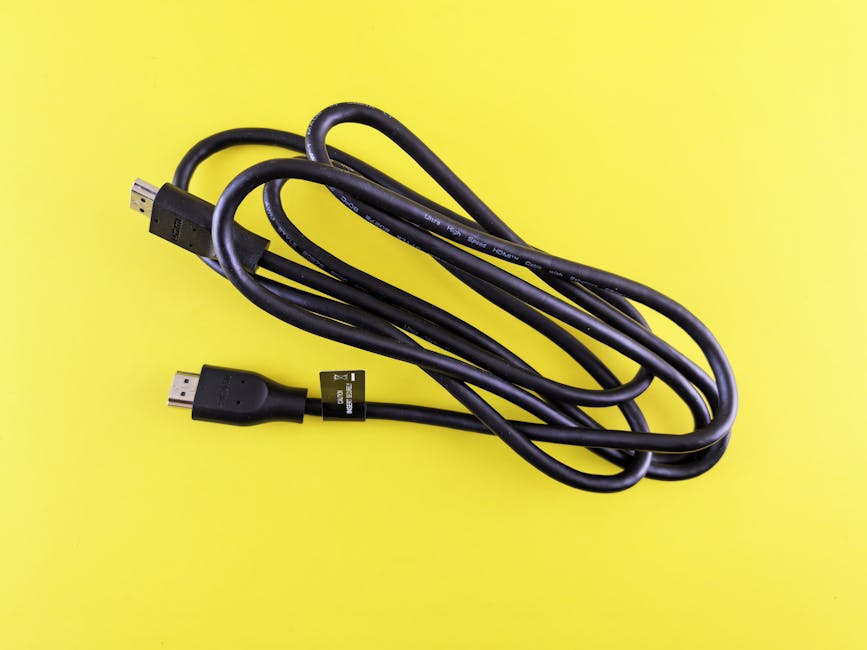
When troubleshooting the issue of no sound from external speakers on smart TV, one of the simplest yet often overlooked solutions is to try a different cable or port. Many users encounter a speaker connection problem that can stem from using a faulty HDMI or audio cable, or plugging it into a malfunctioning port. It’s worth spending a little time swapping out cables or using other ports on your TV to determine if that resolves the audio issue.
In addition, ensure that the cables are securely connected. Loose connections can lead to signal loss, resulting in missing sound. If you are utilizing a soundbar setup, check both ends of the HDMI or optical cables, as well as any auxiliary connections. Sometimes it’s as simple as a poorly seated cable preventing sound from transmitting properly.
Identifying Issues
- Check the speaker power and volume settings
- Inspect all cable connections for firm seating
- Try a different HDMI or audio cable
- Switch to another HDMI port on the TV
- Ensure external speakers are selected as the audio output source
- Look for visible damage on cables and connectors
- Test the speakers with another device to confirm functionality
Moving forward, if the problem persists after testing different cables and ports, consider additional avenues. There may be a tv soundbar issue inherent to your specific model or the way it interfaces with the smart TV. It’s advisable to consult the manual for any model-specific troubleshooting steps or to check online forums for others experiencing similar difficulties. By systematically narrowing down the possible reasons behind the sound issue, you’ll increase your chances of quickly resolving it.
Potential Solutions
Once you’ve identified the cable or port as potential culprits, proceed to explore other solutions like checking the TV settings or verifying device compatibility. Oftentimes, a well-planned strategy can save time and frustration. If all else fails, don’t hesitate to reach out for professional help, especially if warranty services can step in to provide support.
When to Update Firmware or Reset Audio Settings
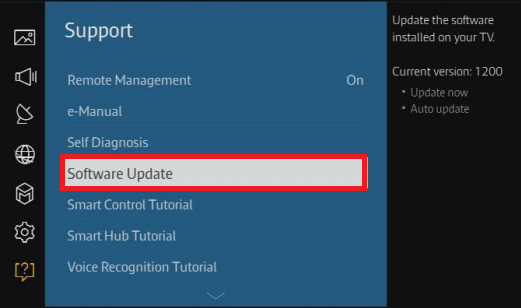
When experiencing issues such as no sound from external speakers on smart TV, it’s crucial to identify whether the root cause lies in outdated firmware or incorrect audio settings. Firmware updates can enhance the compatibility of your TV with external devices, including sound systems. If you haven’t updated your TV’s firmware in a while, it may be time to check for updates as these can frequently resolve existing audio problems, including TV audio not working. Furthermore, resetting audio settings may also help rectify any misconfigurations that could be leading to sound issues.
Next Steps To Take
- Check for any pending firmware updates for your smart TV.
- Attempt a reset of your audio settings to the factory defaults.
- Verify external speaker connections and ensure they are securely plugged in.
- Test other external devices to isolate the issue.
- Navigate to audio output settings and confirm correct selections.
- Consider using a different HDMI port or cable to rule out hardware faults.
- Consult the user manual for any specific troubleshooting tips related to firmware and audio issues.
By following these steps, you may effectively fix TV audio output issues and restore sound functionality. Remember, keeping your firmware up to date and ensuring that audio settings are correctly configured plays a significant role in maintaining your audio experience. If problems persist after attempting these solutions, seeking professional assistance may be the best course of action.
Frequently Asked Questions
What should I check first if there is no sound from external speakers on my Smart TV?
Start by checking the audio output settings on your Smart TV. Ensure that the output is set to the external speakers instead of the built-in TV speakers.
How can I verify if HDMI ARC is enabled on my Smart TV?
To check if HDMI ARC is enabled, go to your TV's settings menu, look under Audio or Audio Output settings, and ensure that HDMI ARC is turned on.
What common setup mistakes might lead to no sound from external speakers on a Smart TV?
Common mistakes include incorrect cable connections, not selecting the correct audio output, or not turning on the external speakers.
What should I do if I suspect the cable or port might be the issue?
Try using a different cable or port for the connection to see if that resolves the sound issue, as sometimes the problem is related to a faulty cable or port.
When should I consider updating the firmware on my Smart TV?
Consider updating the firmware if you continue experiencing issues with sound, as manufacturers often release updates that fix bugs and improve compatibility with external devices.
How do I reset the audio settings on my Smart TV to troubleshoot sound issues?
To reset the audio settings, go to the settings menu on your Smart TV, locate the audio or sound settings, and choose the option to reset to default settings.
Is it possible that specific audio formats are causing the issue?
Yes, certain audio formats may not be compatible with some external speakers. Check the audio formats supported by your speakers and adjust the output format on your TV accordingly.
Can I troubleshoot sound issues without consulting customer service?
Absolutely! Many sound issues can be resolved by following basic troubleshooting steps, such as checking settings, connections, and hardware before reaching out for support.
What types of external speakers are compatible with Smart TVs?
Most modern external speakers that support Bluetooth, HDMI ARÇ optical audio, or RCA connections can be used with Smart TVs, but always check your TV’s manual for specific compatibility.
Why is my TV showing a video signal but no sound from external speakers?
This could indicate that there is an issue with the audio output settings, the compatibility of the audio signal with the speakers, or even a problem with the speakers themselves.