

Keeping your laptop speakers clean is essential for maintaining sound quality and overall device performance. This blog post explores effective ways to remove dust from laptop speakers without needing to open your device. It emphasizes the importance of regular cleaning, detailing step-by-step methods to safely eliminate dust buildup, which can lead to common issues such as muffled sound and reduced volume. The article also offers quick tips and tricks for maintaining speaker hygiene, ensuring lasting audio clarity and preventing future dust accumulation. By following these guidelines, users can keep their laptop speakers in optimal condition and enhance their overall listening experience.
Understanding The Importance Of Cleaning Your Laptop Speakers
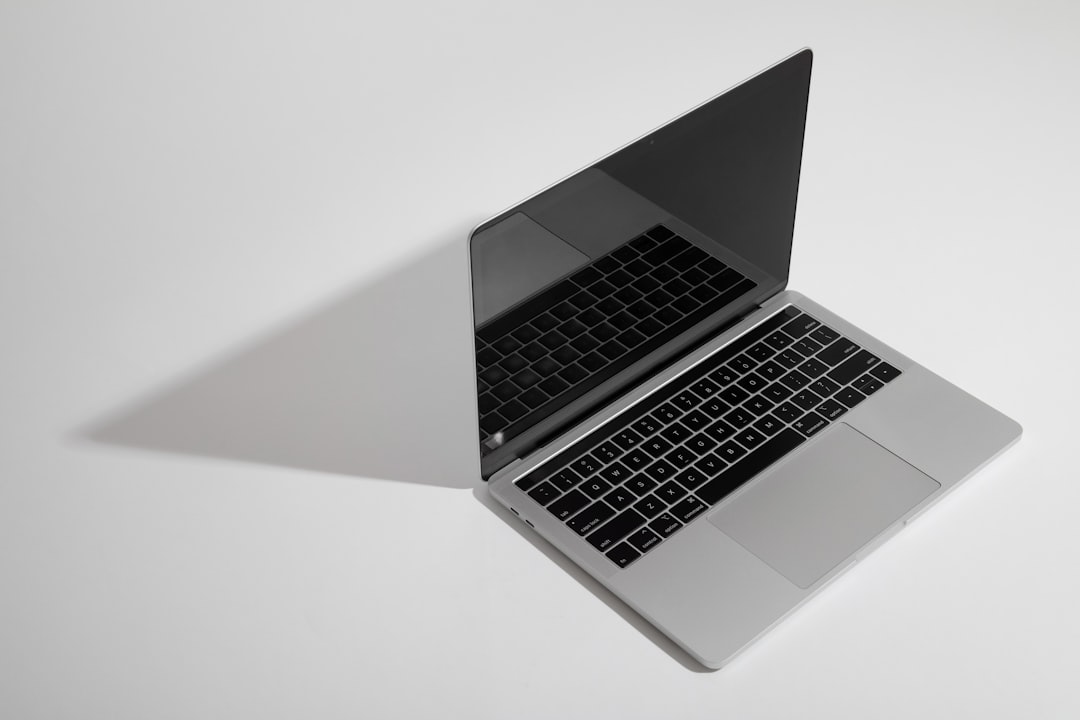
Keeping your laptop speakers clean is essential for maintaining sound quality and prolonging the lifespan of your device. Dust and debris can accumulate in the speaker mesh and internal components, impacting audio clarity and performance. Furthermore, neglecting laptop speaker cleaning can lead to potential blockages that result in overheating or damage over time. Therefore, implementing safe cleaning methods is crucial to ensure that your laptop continues to deliver superior audio experiences.
Key Reasons To Clean Your Laptop Speakers
- Enhances sound quality by preventing distortion.
- Reduces the risk of overheating caused by blocked vents.
- Improves overall device performance and longevity.
- Removes allergens and dust that can affect your health.
- Helps in identifying any underlying issues early on.
- Maintains aesthetic appeal and cleanliness of the laptop.
Incorporating regular cleaning of your laptop speakers can make a significant difference in performance. Utilizing proper techniques ensures that you can remove dust from laptop speakers efficiently without causing any damage. Remember to avoid harsh chemicals or abrasive materials, as they can harm sensitive components. Instead, consider using a soft brush and a microfiber cloth, which are effective and safe for cleaning your speakers without risk of scratching or causing harm.
Effective Steps To Remove Dust From Laptop Speakers

Keeping your laptop speakers clean is essential for optimal audio performance and longevity. Dust accumulation can not only muffle sound quality but also lead to potential damage if ignored. Therefore, it’s crucial to understand effective techniques to remove dust from laptop speakers without the need for disassembly. Below are actionable steps that you can follow to maintain clear and crisp audio.
Before you start the cleaning process, ensure that your laptop is powered off and unplugged. This precaution mitigates the risk of any electrical issues while cleaning. Additionally, using the right tools is vital for effective dust removal. Below is a list of recommended steps that will guide you through the cleaning process:
Steps For Dust Removal
- Gather necessary cleaning materials.
- Power off and unplug your laptop.
- Use a soft-bristled brush to gently sweep away dust.
- Utilize compressed air for deeper dust removal.
- Wipe surfaces with microfiber cloths.
- Consider applying a mild cleaning solution for stubborn grime.
- Perform regular maintenance to prevent future buildup.
Once you’ve completed these steps, you should notice a significant improvement in your laptop’s audio quality. For those who want to invest in sound health for their device, understanding the right tools to use can further enhance your cleaning regimen.
Recommended Tools For Cleaning
It’s important to have the right tools handy when looking to remove dust from laptop speakers. Some of the recommended tools include a soft-bristled brush, compressed air canisters, cotton swabs, and microfiber cloths. These tools are designed to remove dust effectively without damaging your laptop’s surface. Regular cleaning using these instruments can help maintain the longevity of your speakers and ensure high-quality sound output.
Common Issues Caused By Dirty Laptop Speakers
Over time, laptop speakers can accumulate dust and debris, leading to several audio-related problems that compromise sound quality. One of the primary issues associated with dirty speakers is a decrease in clarity. Dust and dirt can muffle sound waves, resulting in a muffled audio output that may be difficult to hear. Regular maintenance is essential to ensure that your laptop’s audio components operate at their best, as neglect can lead to more severe repercussions.
When considering how to remove dust from laptop speakers, it’s crucial to recognize that improper cleaning methods can exacerbate existing problems. In extreme cases, excessive dust accumulation can lead to speaker distortion, reducing overall volume and fidelity. Users may find themselves adjusting the volume levels frequently, leading to an inconsistent listening experience and a frustrating need for a laptop speaker sound fix.
| Issue | Symptoms | Cleaning Tips |
|---|---|---|
| Muffled Sound | Diminished audio clarity | Use compressed air to blow out dust |
| Static Noise | Unwanted crackling sounds | Wipe speaker grills with a soft cloth |
| Low Volume | Sound doesn’t get loud enough | Check for blockages and clean appropriately |
| Inconsistent Output | Sound fluctuates frequently | Regularly dust speaker components |
Common Sound Issues
- Muffled audio output
- Static or crackling noises
- Inadequate volume
- Sound distortion
- Inconsistent audio performance
- Increased background noise
How Dirt Affects Sound Quality
Accumulated dirt not only hampers sound production but also affects the speaker’s operational lifespan. When dust penetrates the speaker enclosure, it can cause vibrations that degrade the sound quality. This can lead to unpleasant audio experiences, especially when listening to music or watching movies. Therefore, maintaining cleanliness is crucial for enjoying consistent audio performance.
Potential Hardware Issues
A dirty speaker can lead to more than just minor inconveniences; it can also indicate potential hardware issues that may require professional attention. If cleaning your speakers does not resolve the audio problems, it might be a sign of failing components. Corroded connectors or damaged speaker cones, often hidden behind the dust, could be the culprits of decreased performance. Thus, ensuring your laptop speakers are free from dirt and dust contributes significantly to their longevity and functionality.
Quick Tips And Tricks For Maintaining Speaker Hygiene
Maintaining speaker hygiene is essential for preserving the clarity and quality of sound, especially in laptop speakers that are prone to dust accumulation. Regular cleaning not only enhances audio performance but also prolongs the life of your speakers. To effectively remove dust from laptop speakers, adopting a few simple yet effective strategies can make a significant difference. Implementing these practices will keep your speakers functioning optimally while maintaining their aesthetic appeal.
Best Practices For Speaker Maintenance
- Use soft, dry cloths to gently wipe the speaker grills.
- Utilize compressed air to blow out hard-to-reach dust without opening the device.
- Keep your laptop away from dusty environments to minimize accumulation.
- Avoid eating or drinking near your laptop to prevent debris from settling in.
- Periodically check and clean the surrounding area to eliminate sources of dust.
- Consider placing a protective cover over your laptop when not in use.
Incorporating these best practices will help maintain the hygiene of your speakers effectively. Regular attention to your speakers ensures they deliver the best audio experience, free from distractions caused by dust buildup. Remember, a little prevention goes a long way in enhancing the performance of your laptop’s audio system.
Frequently Asked Questions
Why is it important to remove dust from laptop speakers?
Cleaning dust from laptop speakers is crucial as it improves sound quality, prevents overheating, and prolongs the lifespan of the device.
What tools do I need to remove dust from laptop speakers?
To effectively remove dust from laptop speakers, you'll need a microfiber cloth, canned air, and an audio cleaning brush.
Can I use a vacuum cleaner to clean my laptop speakers?
It's not recommended to use a vacuum cleaner, as it can create static electricity that may damage the laptop. Instead, use canned air or a soft brush.
How often should I clean my laptop speakers?
It's advisable to clean your laptop speakers every three to six months, depending on your environment and usage.
What steps should I follow to clean laptop speakers without opening the device?
Start by unplugging the laptop, then use canned air to blow out dust, followed by gently brushing the speaker grills with an audio cleaning brush.
Are there any risks associated with not cleaning laptop speakers?
Neglecting to clean laptop speakers can lead to muffled sound, overheating issues, and potential internal damage over time.
Can I use a cloth dampened with water to clean my laptop speakers?
It's best to avoid using a damp cloth, as moisture can seep into the speakers and cause damage; instead, use a dry microfiber cloth.
What common problems arise from dirty laptop speakers?
Dirty laptop speakers can cause poor audio quality, distorted sound, and may even lead to the device overheating due to blocked ventilation.
Are there quick tips for maintaining speaker hygiene in laptops?
Yes, regularly use a microfiber cloth to wipe the exterior, keep the laptop in a clean environment, and avoid eating or drinking near the device.
What should I do if my laptop speakers still sound bad after cleaning?
If cleaning doesn't resolve the issue, it may indicate a deeper problem like hardware failure or need for professional servicing.